
Lnk.Bio
Add, edit, and style your Lnk.Bio links, blocks & pages
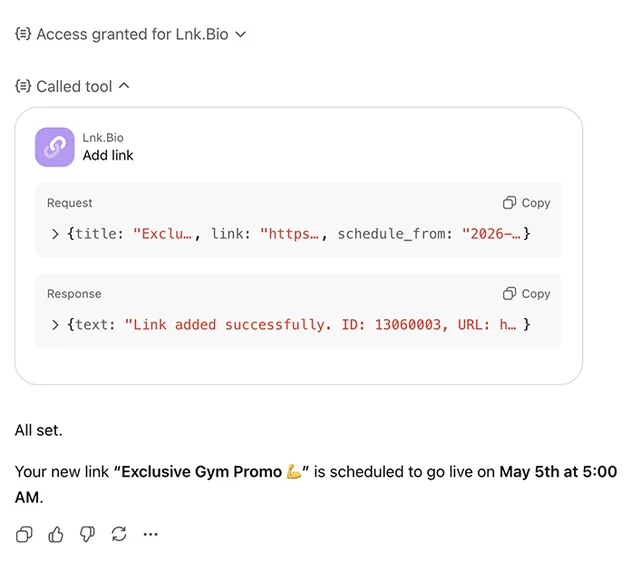
Manage your entire Lnk.Bio profile directly from your AI. Add, edit, schedule, and reorder links.
What you can ask
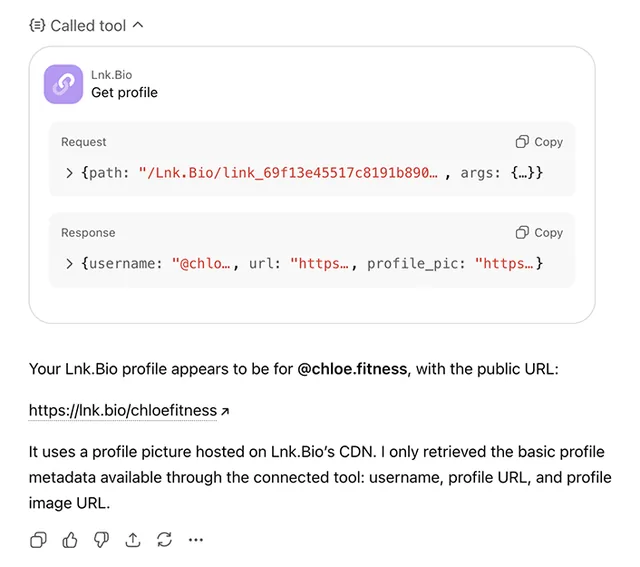
- Please get my Lnk.Bio profile basic info
Example path →
MCP connector
- Server URL
https://mcp.lnk.bio/- Login
- OAuth
- Protocol
- MCP 2025-06-18
- Instructions
Use these tools to manage the authenticated user's Lnk.Bio profile. All tools require the user to have connected their Lnk.Bio account.
QUALITY RULES (follow these for every operation):
IMAGES ON LINKS: When calling , try to include the image parameter whenever possible. Browse the destination URL to find the site's logo, Open Graph image (og:image), or a representative image. Use the direct, publicly-accessible image URL so Lnk.Bio's server can fetch it. If you cannot find a suitable image, it is OK to create the link without one. NEVER use emojis in link titles. No emoji characters anywhere in link titles. Titles must be clean, plain text only.
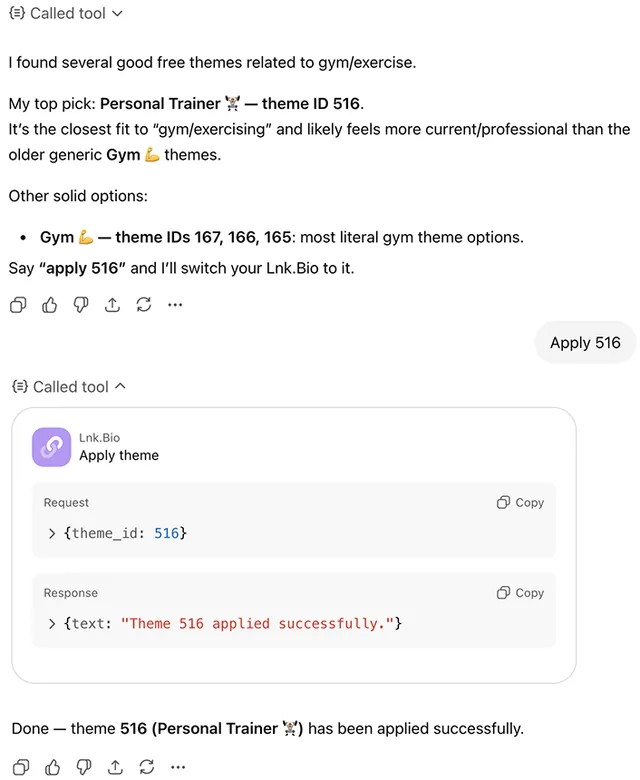
ALWAYS START WITH : Before any create, build, or improve operation, call first to check the current state. This tells you the username and whether a profile picture is set. If profile_pic is empty, set one using before doing anything else. Ask the user for their preferred image, or use their brand logo from their website. Then call to check if a theme is applied. If no theme is set, apply one using + .
SOCIAL ICONS ON EVERY PROFILE: When building or improving a profile, ALWAYS add a BLOCK_ICONS block and populate it with the user's social media links. IMPORTANT: first call to check if a BLOCK_ICONS block already exists. If it does, use that block_id. Do NOT create a duplicate. If none exists, the required sequence is: (1) with type=BLOCK_ICONS to create the block, (2) to find each platform's type_id (e.g. search "instagram", "tiktok", "youtube"), (3) for each platform with the block_id from step 1. Email, phone, and WhatsApp are also icons (not links). Search "email", "phone", or "whatsapp" to find them. Ask the user which social platforms they use if not already specified.
DO NOT ADD BLOCK_TITLE, BLOCK_HEADLINE, OR BLOCK_BUTTON: These blocks must NEVER be added unless the user explicitly asks for one. The BLOCK_PROFILEPIC block IS the header of the page. It already displays the profile picture, name, and username prominently at the top. There is no need for any other heading, title, or welcome message. Adding BLOCK_TITLE or BLOCK_HEADLINE creates an ugly, redundant banner that makes the page look unprofessional. If you feel tempted to add a heading like "Welcome to..." or the business name, DO NOT. The BLOCK_PROFILEPIC already handles that. BLOCK_BUTTON must NOT be used to add links. All links must be added via , which places them inside the BLOCK_LNKS container. BLOCK_BUTTON creates a standalone button that looks inconsistent with the rest of the page. Use instead.
USE VIDEO BLOCKS: When the user mentions a YouTube, Vimeo, or TikTok video, or when their content includes video URLs, add a BLOCK_VIDEO block via with the video URL in the data field. Only use real, verified video URLs that you know exist. Do NOT invent or guess video URLs. If the user did not provide a specific video URL, ask them for it.
BLOCK ORDER MATTERS: The order of blocks on a page determines how the profile looks. BLOCK_PROFILEPIC must ALWAYS be the FIRST block on the page (position 0). When adding blocks with , omit the "after" parameter to insert at the beginning, then use at the end to set the correct final order. The recommended block order from top to bottom is:
Tools
Reads data12
Changes data8
Deletes or can't be undone13
Skills
None in the store listings or on the server
Screenshots
 Webflow#68