
Claude
- Open Add custom connector ↗
- Name it Pixly and paste the URL
- Click Add, then sign in to your account
https://pixly.app/api/mcp/chatgpt
TuLugar.com·Design & creative·Live in 
Property video & photo edits
Pixly makes real estate videos and precise photo edits, right in the chat. Attach a photo of a room, a house or a plot and say what you need. No prompts to write, no video or design software.
A short property video from one photo, with a real camera move: aerial, orbit, crane, flyover and more
Flythrough: two to four room photos in walking order become one continuous camera move through the home
Before-and-after video: an empty room becoming a designed one, a renovation, or day turning into night
A video that travels from one photo to another
Change one thing and keep the rest: recolor the sofa, remove a car, fix the words on a sign, while the rest of the photo is kept as it is
In Pixly Studio, brush over the exact area to change
Works on any photo, yours or a Pixly result
A clean floor plan from a description or a hand sketch, ready to fine-tune in Pixly's editor
Before-and-after image: two photos as one comparison, side by side, stacked or split, with labels in your language
Straighten: leaning walls made vertical and the horizon levelled, automatically
Watermark: your name or logo on up to ten photos at once
Blur faces and license plates before a photo goes online
Virtual staging and interior design in 61 styles; remove furniture or declutter; restyle walls, floors and cabinets
Day to dusk, sky replacement, a green lawn, seasonal reset, exterior touch-up and garden makeover
Furnished or 3D floor plan images from a brochure page or a blueprint
Plot sign: a 3D SOLD or For Sale sign on a photo of land
Enhance an amateur shot, and HD upscale up to 4x
Empty room to furnished reveal, walkthrough from room photos, a listing photo kit, listing text and social posts, ready-to-post photos and floor plan to 3D render: your AI runs each with Pixly, step by step
A whole set of listing photos as one plan, confirmed once
Listing descriptions and captions written from the finished photos
Open Pixly Studio from the sidebar: say what to make from a photo, browse the camera moves as playing examples, start a workflow, and see your photos and videos as a library. Every result shows a before-and-after slider and one-tap next steps, such as turning a staged room into a video.
Results are HD with no watermark, in Pixly's 8 languages. Sign in with your Pixly account to use it.
ChatGPT rankTurn this listing photo into a video with a slow drone move
Follows the skill
https://pixly.app/api/mcp/chatgpt

https://pixly.app/api/mcp/chatgptpixly.appThe AI reads these server instructions before using this connector, every time.
Pixly turns real-estate and home photos into short property videos — a cinematic camera move from one photo (), a walkthrough from room photos (), a before-and-after reel () — and makes precise photo edits that keep everything else unchanged. It also stages, relights and retouches photos. When the user asks for a video of a photo, or a property, use these video tools; you can't make videos yourself. Use each tool's defaults (a 5-second video) unless the user asks for something else; never pick a longer or bigger option on your own. Pass only what the user said: Pixly writes its own prompts, so leave optional text fields such as customInstructions empty unless the user asked for something specific. Paid tools quote first: the first call starts nothing and charges nothing; it returns the price and settings, and the Pixly card shows them for the user to confirm with one tap. Tell the user briefly what it will cost. Call again with the quote's confirmationCode only after the user said yes in the chat. Free tools run at once. Several photos at once (a whole listing): — one plan, one total, one confirmation, instead of a quote per photo; poll its jobs with jobIds. Property folders: work on a whole property (a set of photos, a walkthrough) goes in its folder — ask once which property it is, call (title = their answer, or none if they skip) and pass its listingId to the tools. When the user names a property, finds its folder. A photo already in a folder takes its results there by itself. Pass the photo the user attached in the photo field (beforePhoto/afterPhoto for a before-and-after video), or a public image URL in imageUrl. Photo tools usually return the finished result; video tools, and a photo that takes longer than usual, return a job instead — call until its status is completed (each call waits up to 40 seconds), then show the result URLs. If you stop before a job is completed, never leave the user without a next step: say it is still rendering, that they can ask you to show their Pixly result in a moment, and that it will also be in their Pixly library at https://pixly.app/app. Pixly Studio () shows the user's library as pictures and lets them run any tool with visual options, including the interior styles as thumbnails — open it when they want to browse results or choose visually. Staging without a named style uses the user's default style from their Pixly settings. Tools spend credits from the user's Pixly plan; shows what's left. If a tool says a plan or more credits are needed, tell the user; the plans are described at https://pixly.app/pricing. Free for every account, no credits: , , , , (and ). When the user wants one thing changed in a photo — a Pixly result or their own, e.g. a sofa recoloured, a car removed, a sign's words — use : it changes only that and copies the rest of the photo unchanged. In Pixly Studio they can also mark the exact area to change. To run another tool on a Pixly result you need no file: pass the result's resultPaths entry as r2Path (or beforeR2Path, afterR2Path, a photos[] item), or its resultUrls entry as imageUrl. Results of earlier conversations are in . You can't see Pixly results by yourself: before writing a caption, a listing description or anything about one, call with its job id and look at it. Captions you write are the user's own — no #Pixly or other mention of Pixly in them.
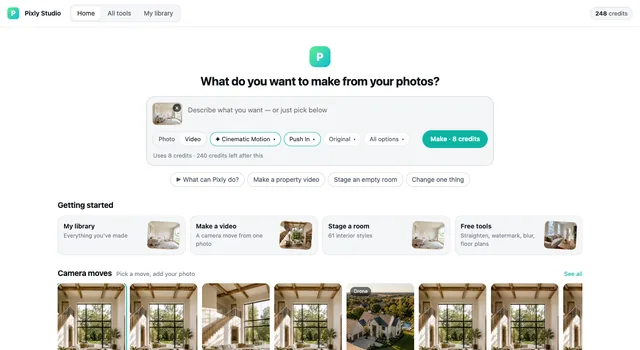
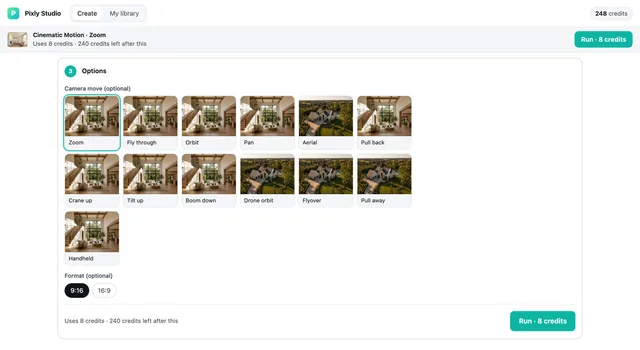


Property video & photo edits. Pixly makes real estate videos and precise photo edits, right in the chat. Attach a photo of a room, a house or a plot and say what you need. It is listed under Design & creative.
Open its listing in the app's connector directory and connect. Sign in to your account in the browser window that opens. It uses OAuth, so the AI never sees your password. Step-by-step setup for each app is on this page.
The Pixly MCP server URL is https://pixly.app/api/mcp/chatgpt. Paste it as a custom connector in Claude, ChatGPT, Gemini or Grok, or add it to Claude Code, Cursor or any MCP client. Setup steps.
Yes. Pixly is published or run by TuLugar.com, so it is the official MCP server. See other official connectors.
It is listed in 1 store: ChatGPT. Apps where it is not listed can usually still add it as a custom connector.
It is ranked 12,381 of 15,293 in the ChatGPT directory. A rank is the store's own order, not a usage count. How we track ranks.
It has 36 tools: 8 read data, 26 change data and 2 can delete or overwrite data. See every tool and its inputs.
Yes. 26 tools can change data and 2 tools can delete or overwrite it. Most AI apps ask before they run these. The store marks these as destructive:
It comes with 8 skills. A skill tells the AI how to do one job well with these tools. Read each SKILL.md.
Here are examples from its store listing. Type one into your AI after you connect.
Yes. Some of its tools show an interactive widget in the chat, not only text. See more connectors with interactive UI.
This page updates every day. To ask about Pixly from Claude, ChatGPT or a coding agent, connect the Agent Ready MCP server: it tracks ranks, tools and new listings across the AI plugin stores.